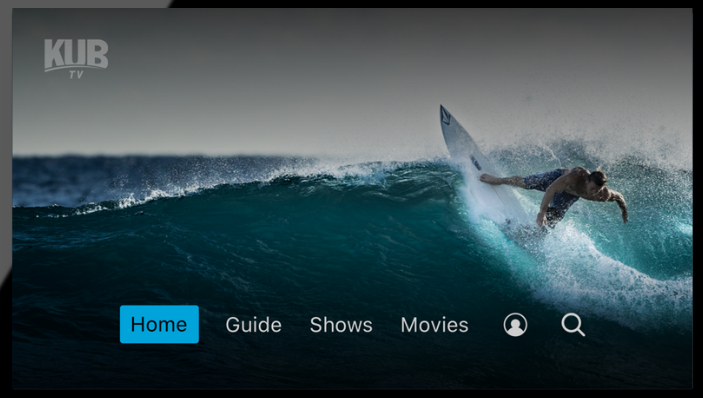
Welcome to KUB TV! Whether you've just signed up or have been enjoying your service for a while, we're here to help you make the most of your TV experience.
From watching live television and discovering new shows to recording your favorites and catching up on programs you've missed, KUB TV brings your entertainment together in one convenient app.
In this guide, we'll walk you through setting up your KUB TV account, navigating the app, and using features like Start-Over, Lookback, and Out-of-Home streaming.
Prefer to watch a tutorial? Check out our KUB TV video guide for a walkthrough of the features covered below.
1. Set Up Your KUB TV Account
Once your KUB TV service has been activated, you'll receive an email with instructions for creating your account password.
Follow these steps to get started:
1. Open the KUB TV account setup email.
2. Select the Create Password button.
3. Follow the instructions to create your password.
4. Use the email address associated with your KUB TV subscription as your username.
Once your password is created, you're ready to sign in and start exploring KUB TV.
Download the KUB TV App
Next, you'll need to install the KUB TV app on your compatible streaming device. Search for KUB TV in your device's app store, such as the Apple App Store or Google Play Store, depending on your device.
Once installed, open the app and sign in using your KUB TV username and password. After signing in, you'll have access to the channels and features included in your KUB TV subscription.
2. Explore the KUB TV App
KUB TV makes it easy to find your favorite entertainment by organizing content into several convenient sections:
- Guide: Browse live television channels and upcoming programming.
- Shows: Explore television shows available through your subscription.
- Movies: Discover movies and available viewing options.
- Search: Find content by title or category.
- Sports: Browse sports programming.
- Profile: Access your account's available profile options and settings.
Instead of searching through different services to find what you want, KUB TV brings together available live, on-demand, and recorded content in one place.
Navigate the KUB TV Channel Guide
The KUB TV Guide is a convenient way to browse what's currently on television and what's coming up next. You can browse channels, explore programming by category, and filter out channels that aren't included in your subscription.
When you select a program, you'll see a quick view with information about the show or movie. From there, you can explore additional details or set a recording for eligible programming.
Search for Your Favorite Shows and Movies
Know exactly what you want to watch? Use the Search feature to look for a program by title or browse categories such as movies, sports, news, and more. KUB TV can display matching content across live television, on-demand options, and upcoming programming, making it easier to find what you're looking for.
Pick Up Where You Left Off
KUB TV also makes it easier to return to content you've already started watching. With available continue-watching features and personalized recommendations, you can discover new entertainment or pick up where you previously left off.
3. Make the MOst of KUB TV's Features
Beyond live television, KUB TV includes convenient features that give you more flexibility over when and how you watch.
Start-Over: Watch a Program From the Beginning
Ever turn on the television only to realize your favorite show has already started? With KUB TV's Start-Over feature, you can restart eligible live programming from the beginning. Start-Over becomes available two minutes after a supported program begins, allowing you to catch the opening moments without waiting for another airing.
Important: Fast-forwarding is disabled when using Start-Over.
Lookback: Catch Up on Programs You've Missed
Forgot to record your favorite show? KUB TV's Lookback feature may be able to help. Lookback allows you to watch eligible programming that aired within the previous 72 hours. Simply navigate backward through the channel guide to find available programs and select what you'd like to watch. It's a convenient way to catch up on certain shows without having to schedule a recording ahead of time.
Important: Fast-forwarding is disabled when using Lookback. Availability depends on the program and channel.
Record Your Favorite Programming
Want to save a show or movie to watch later? When browsing eligible programming, you can access recording options through the program's quick view or detail page. This allows you to plan ahead and enjoy your favorite content when it's convenient for you.
Out-of-Home Streaming: Watch While You're Away
KUB TV isn't limited to your living room! Depending on your subscription and the programming available, you may be able to access select channels and entertainment while away from your home WiFi network. KUB TV offers several out-of-home viewing options, including its mobile app, authenticated network applications, and KUB TV Everywhere. For a complete breakdown of these options and the login information you'll need, check out our guide to watching KUB TV while traveling.
How to Watch KUB TV While Traveling
4. Manage Your KUB TV Account
Need to make changes to your account or update your password? You can access the web version of KUB TV to manage available account settings, make profile updates, and change your password.
Get More From Your KUB TV Experience
From browsing live television to catching up on missed programs, KUB TV is designed to make finding and enjoying your favorite entertainment simple. Whether you're just getting started or exploring features you haven't tried yet, there's plenty to discover within your KUB TV subscription.
Want to learn more about KUB TV?
Explore our additional resources, watch our tutorial, or contact our local support team if you need assistance.