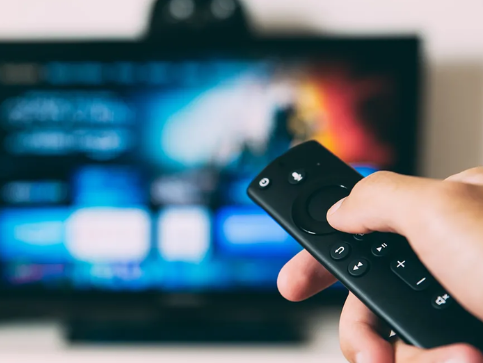
Looking for an easy way to watch KUB TV on your television? An Amazon Fire TV Stick, commonly called a Firestick, can help you access your favorite channels and streaming apps without a traditional cable box.
Whether you're setting up KUB TV for the first time or looking to get more out of your streaming experience, the Fire TV Stick offers convenient features, including access to multiple apps, a simple remote, and Alexa voice controls.
Here's how to get started with KUB TV on a Firestick and make the most of your streaming experience.
1. Set Up Your Amazon Fire TV Stick
Before you can watch KUB TV, you'll need to connect your Fire TV Stick to your television and home internet.
Follow these steps to get started:
1. Connect your Firestick. Plug the Fire TV Stick into an available HDMI port on your television.
2. Connect to power. Use the included power adapter and cable to power your device.
3. Select the correct input. Turn on your television and switch to the HDMI input where your Firestick is connected.
4. Connect to WiFi. Follow the on-screen instructions to connect your Firestick to your home WiFi network.
5. Complete the setup. Follow the prompts to sign in to your Amazon account and finish configuring your device.
Once setup is complete, you'll be ready to explore streaming apps, including KUB TV.
2. Download and Open the KUB TV App
After connecting your Firestick to the internet, the next step is accessing KUB TV.
Here's how:
1. From the Fire TV home screen, navigate to the app search feature.
2. Search for the KUB TV app.
3. Select the app and follow the on-screen instructions to download or install it.
4. Open KUB TV once installation is complete.
5. Follow the KUB TV sign-in instructions to access your subscription.
Once you're signed in, you can start exploring the channels and programming included in your KUB TV package.
Your Firestick also gives you access to other popular streaming apps, including Netflix, Hulu, Prime Video, and more. Availability and subscriptions for these services are separate from your KUB TV package.
3. Use Alexa Voice Commands
Did you know your Firestick may allow you to control certain features using your voice?
If your device includes an Alexa-enabled remote, you can use voice commands to search for entertainment, launch apps, and navigate compatible features. Simply press and hold the Alexa or microphone button on your remote and speak your command.
Try commands like:
"Alexa, open KUB TV."
"Alexa, open Prime Video."
"Alexa, search for comedy movies."
Voice commands can make navigating your Firestick easier, especially when you don't want to type out a search using your remote. Available commands and app-specific features may vary by Fire TV Stick model and software version.
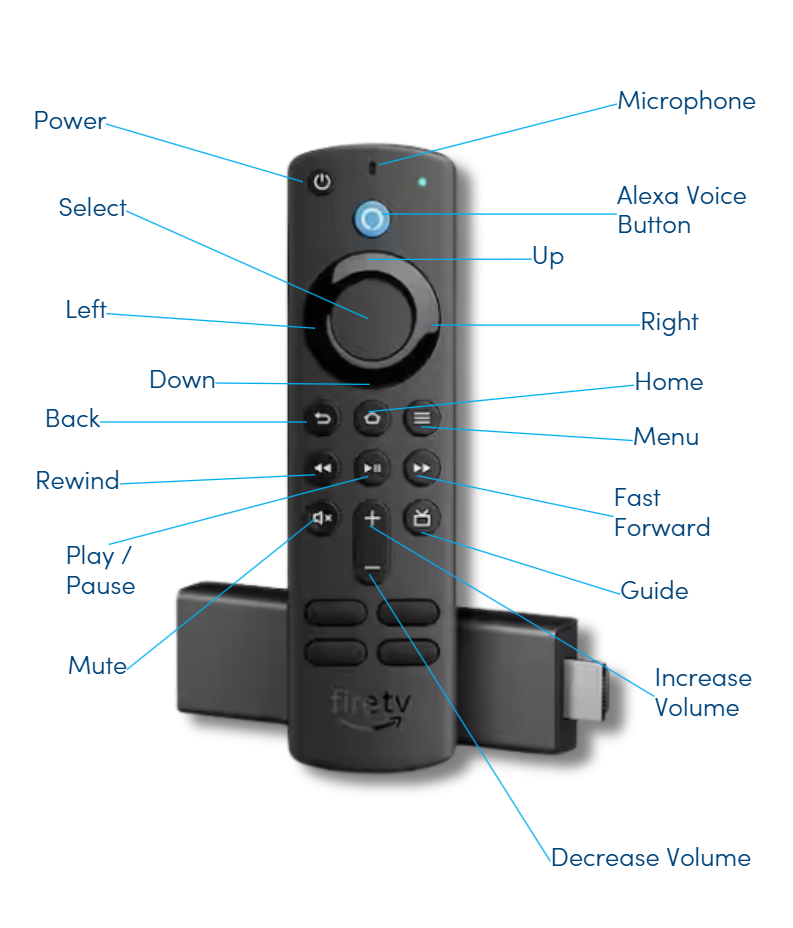
4. Get Familiar With Your Firestick Remote
Your Firestick remote is designed to make navigating between apps, channels, and streaming content simple.
While remote layouts vary by model, many include the following controls:
Home Button: Returns you to the Fire TV home screen.
Navigation Buttons: Move through menus, apps, and available content.
Select Button: Choose an app, menu item, or program.
Back Button: Return to the previous screen.
Alexa Voice Button: Use supported voice commands to search or open apps.
Playback Controls: Pause, play, or navigate supported content.
Volume Controls: Adjust your television's volume on compatible remotes.
Some Firestick remotes also include shortcut buttons for popular streaming services. These buttons vary depending on your device.
Make the Most of Your KUB TV Experience
With a compatible Amazon Fire TV Stick, accessing KUB TV and your favorite streaming apps is simple. From convenient app navigation to Alexa voice commands, your Firestick provides several ways to make watching television easier.
Whether you're new to KUB TV or just getting familiar with your streaming device, a little setup can go a long way toward improving your viewing experience.
Want to learn more about KUB TV and its available features?
Explore our KUB TV resources for more information about compatible devices, streaming options, and customer support.